By default, slicers display up to 50,000 elements. For performance and usability reasons, you may want to decrease the maximum number of elements that can be displayed in the slicer. This can be done by changing the Slicer Elements Limit either for a particular slicer (in the Slicer Settings panel) or for all slicers for the current user (in your User Defaults).
Important: The limit must be a number between 100 and 50,000. A slicer limit set in the Slicer Settings panel cannot be greater than that set in your User Defaults.
Setting your Slicer Limit
Slicer Settings
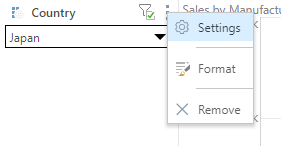
Set the Slicer Elements Limit for a particular slicer. Start by opening the discovery or presentation that contains your slicer. Then open the Settings from the slicer's context menu:
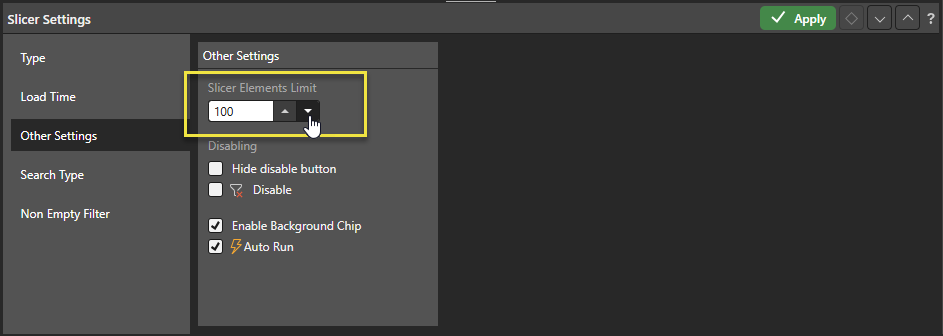
From the Other Settings tab, you can set the elements limit for the slicer (note that the limit set here cannot exceed the limit set from the user defaults):
User Defaults
Set the Slicer Elements Limit for all your slicers. Start by clicking the User Settings avatar at the top-right of the Home Page (purple arrow below), then open the User Defaults tab (green arrow):
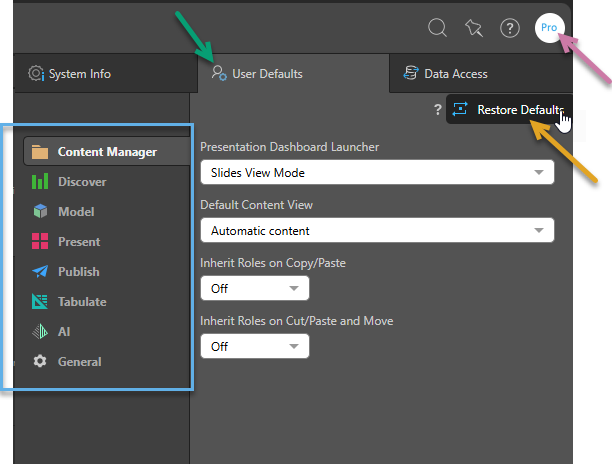
From the Discover tab (blue box above), you can set the Slicer Elements Limit for your slicers.
Slicer Limit Indicator
If the number of elements in the slicer hierarchy exceeds the elements limit, a Limit Indicator is displayed alongside the slicer's header (green arrow below) and the list is truncated:
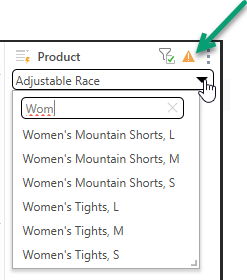
All items remain accessible using search. For example, a truncated alphabetical product list may end before "W" in the dropdown list, but items starting with "Wom" can still be found using the search field (see above).
Tip: You can hover your cursor over the indicator to see what the slicer elements limit currently is:
